Short answer
Draft-order mode is optional and off by default. It’s for sellers who want each show’s sales as one Shopify draft order to complete later, for example to invoice or to record what the platform paid. During a show, each sale comes off your stock right away, as usual. When you end the show, ScanStation puts that stock back, then puts the show’s sales into one Shopify draft order that holds them, so nothing is counted twice. You then complete the draft in Shopify, which makes it a real order.
To turn it on, add one permission to your ScanStation app, approve it on your store, then switch it on in Settings for each station that should use it. The station must sell from your store’s primary (default) location. If you don’t turn it on, nothing changes.
Know your mode
Which mode am I in?
Every station is in one of two modes. Here’s what each one means for your stock.
- Off · the default
Normal selling
- During the show
- Each scan takes 1 off the item’s available stock in Shopify, right away.
- When it ends
- Nothing more happens. Your stock already shows what sold.
- In Shopify
- No draft orders are made.
- Optional · per station
Draft orders: ON
- During the show
- The same as normal selling: each scan takes 1 off available stock, right away.
- When it ends
- ScanStation puts back the stock it took off, then makes one draft order that holds the same items. Your available stock ends up just as it was after the show.
- In Shopify
- You complete the draft, and it becomes a real order. Shopify doesn’t take the items off stock a second time.
Where to see it
On the scan screen, whenever it’s on.
The top bar has an amber Draft orders button, with an amber line under the bar, and Draft orders: ON sits beside This show. Click Draft orders to read what happens when you end the show. No button and no label means the station is selling normally, as it always has. If draft orders are on but a show couldn’t start that way, a line under the bar says Draft orders couldn’t start for this show; selling normally., and why.
Tap to open full size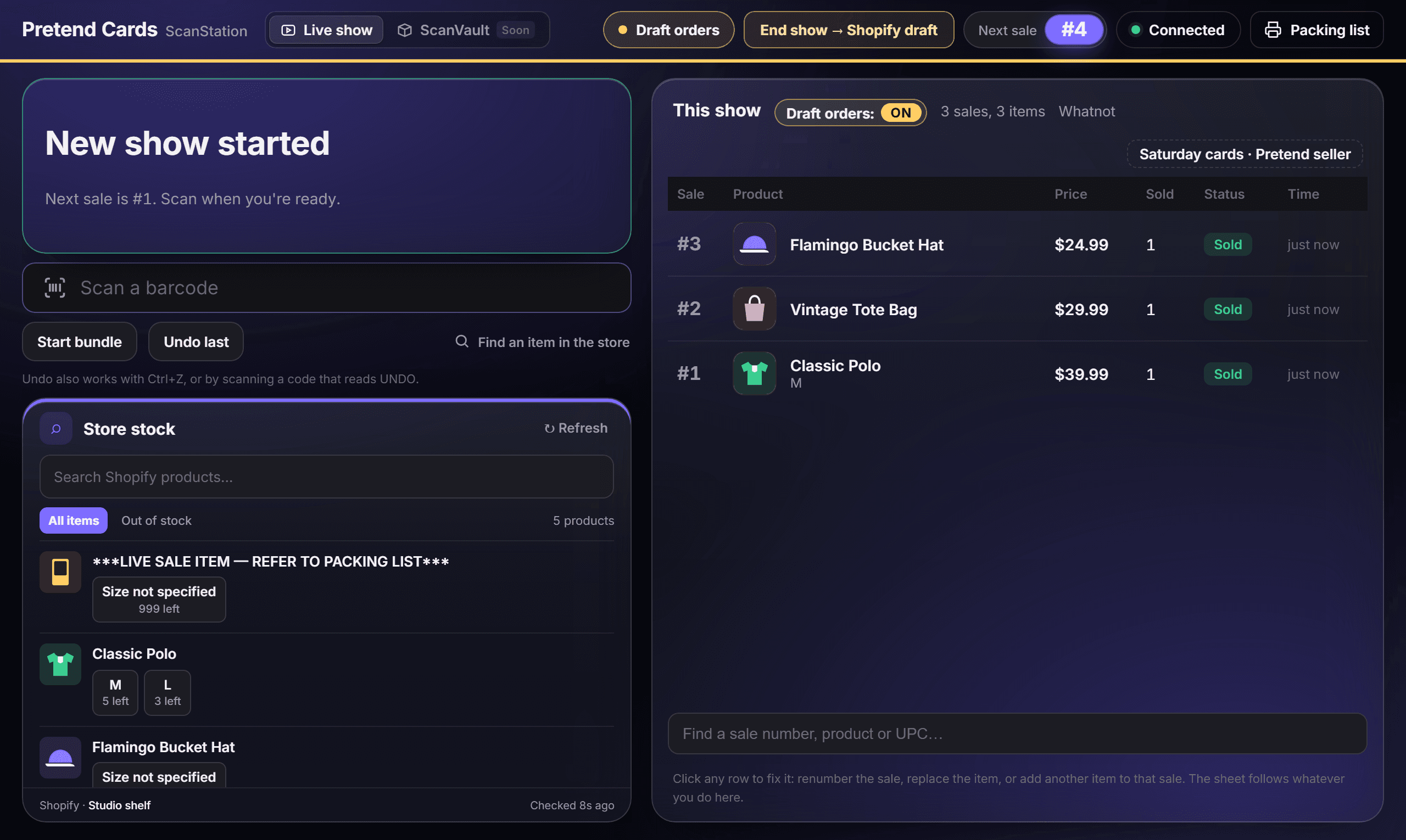
A draft-order show. The amber Draft orders button, the amber line under the bar, and Draft orders: ON beside This show. Pretend store. Each time you start a show.
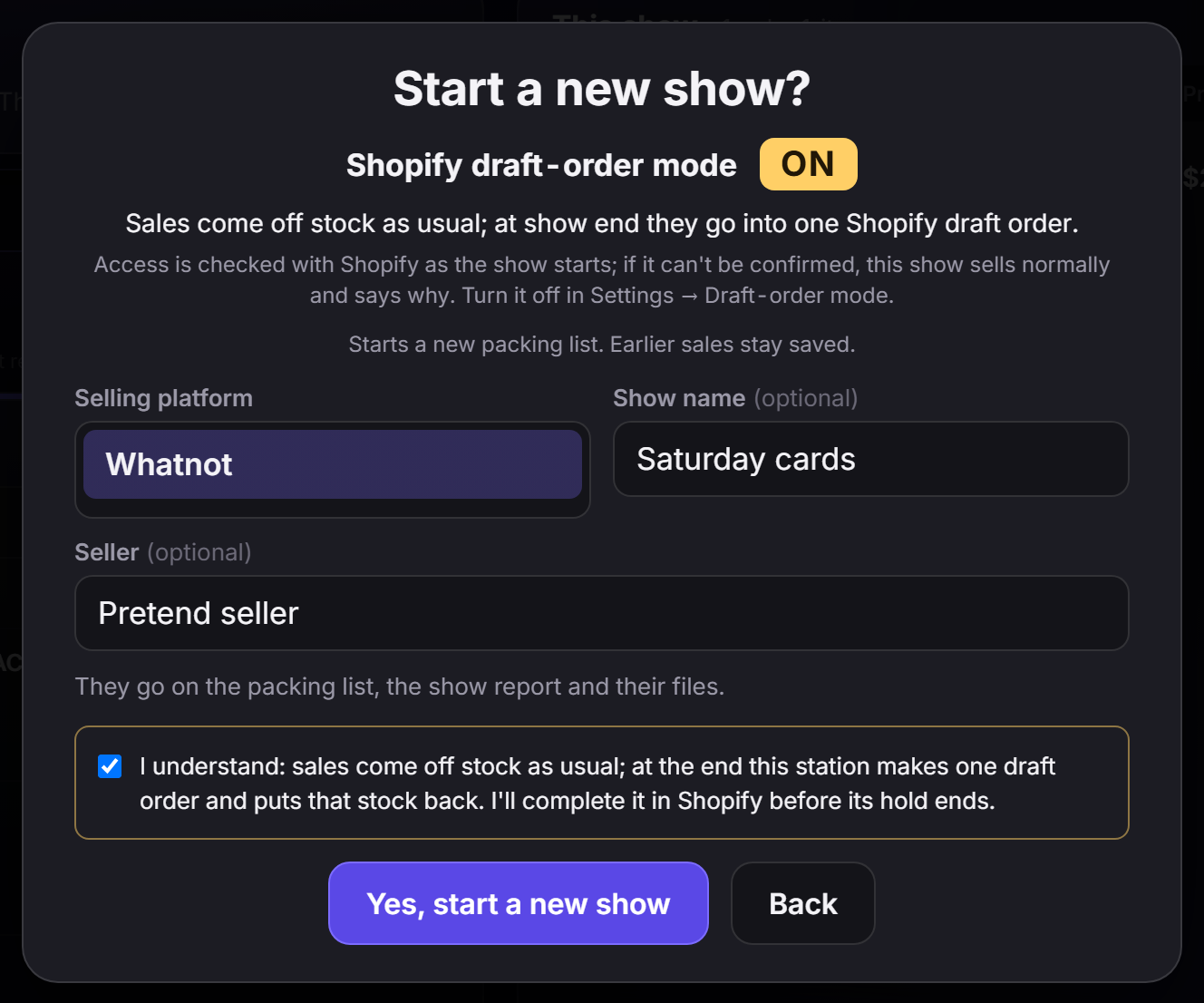
In draft-order mode, the Start a new show? question says Shopify draft-order mode ON, and you tick I understand before you start.
Tap to open full size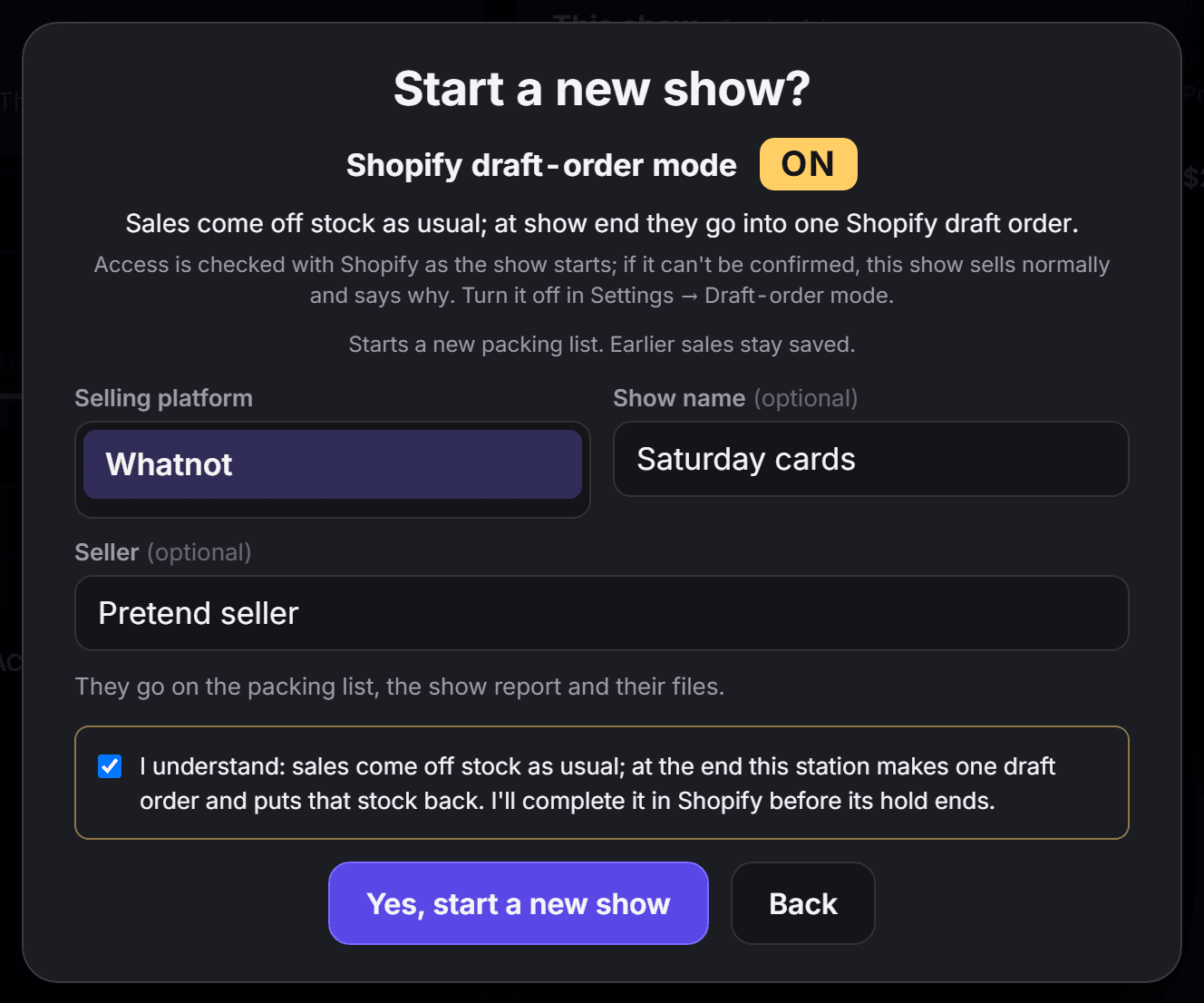
Starting a draft-order show. Every draft-order show asks first. Pretend store. In Settings → Draft-order mode.
ON or OFF, for this station’s next shows. Settings shows what your next show will use; the scan screen shows the show that’s running.
Tap to open full size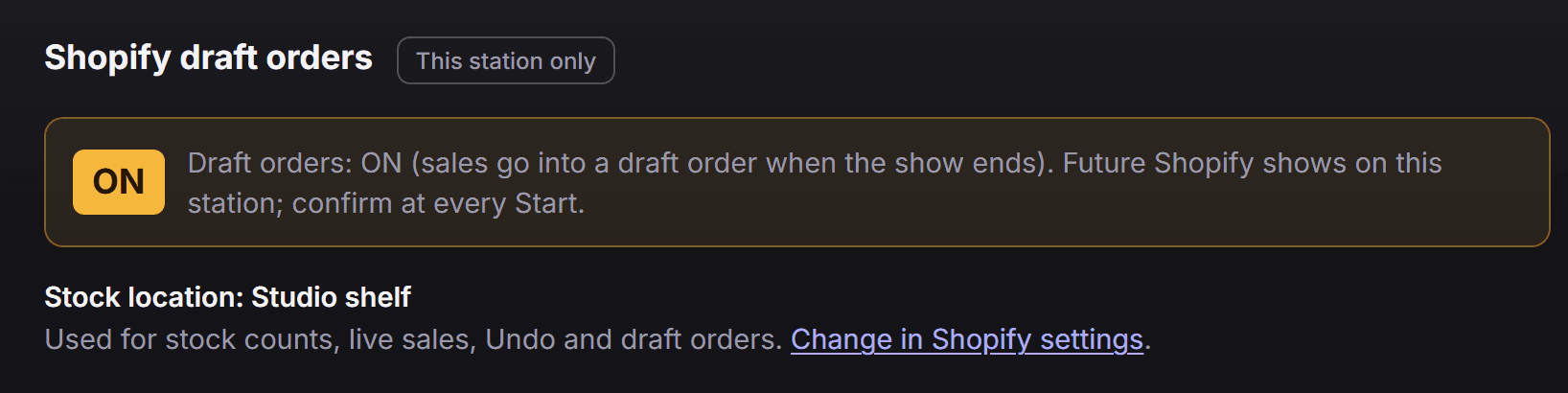
ON in Settings. Saved: ON for this station’s next shows. Pretend store.
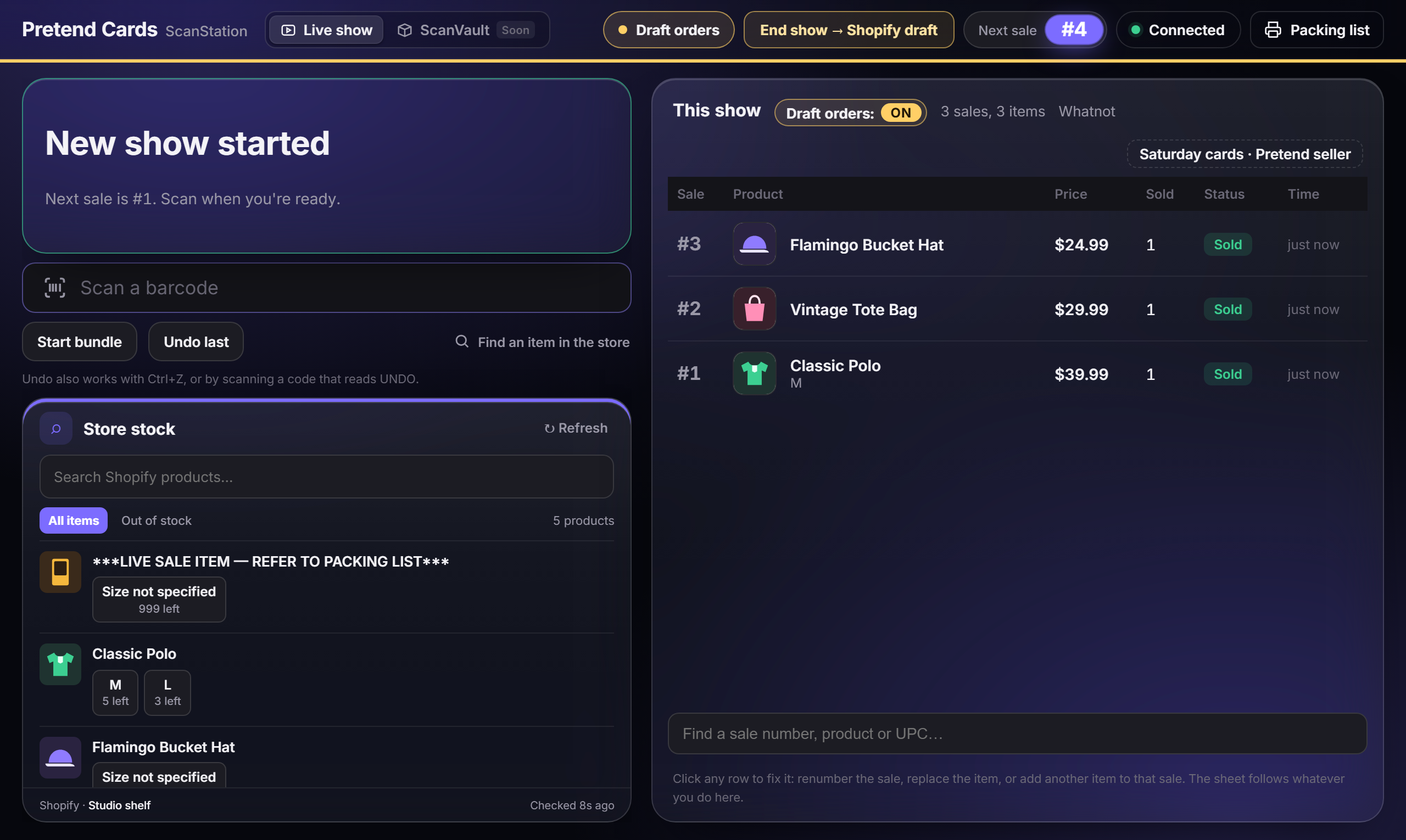
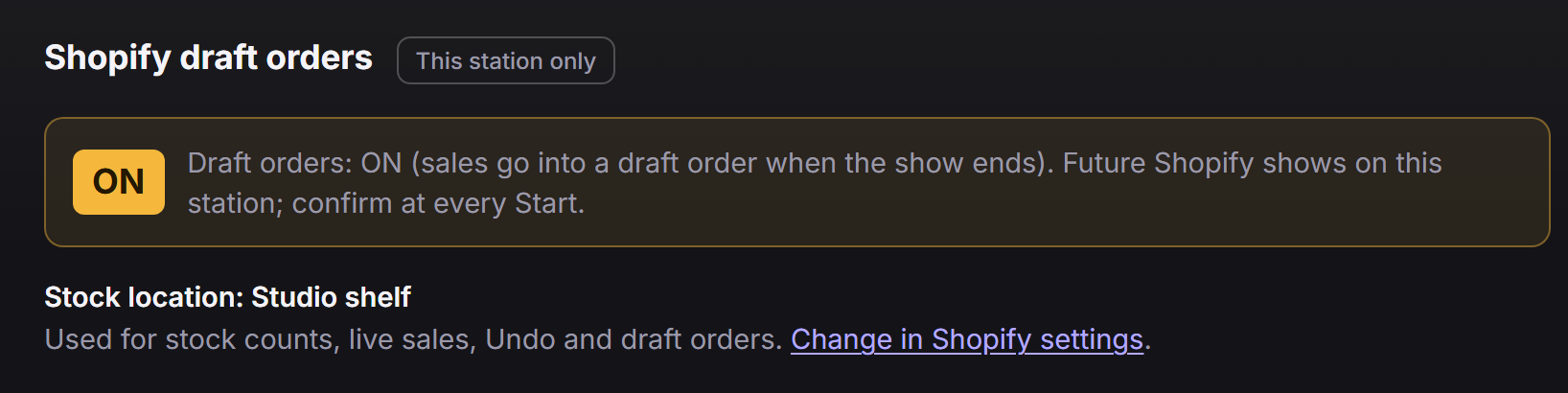
The mode is set when a show starts. Changing the setting changes your next show, never the one that’s running.
Before you start
What you need
- Your ScanStation app in Shopify: the one you made during setup. You keep it, and your connection keeps working as it is.
- Permission to approve apps on your store. The store owner has it.
- A station that sells from your store’s primary location. Draft orders only start there. Why.
- About five minutes. Selling keeps working the whole time, so you can do this between shows.
If Settings says This station uses an older Shopify connection, draft-order mode needs a newer ScanStation app in Shopify. In ScanStation, open Settings, then Shopify, and follow Change store or keys to create it. Then come back to these steps.
Turn it on · three parts
Turn on draft-order mode
Two parts happen in Shopify and one in ScanStation. Do them in order.
Add the permission to your ScanStation app
On dev.shopify.com. It’s the same app, so its Client ID and secret stay the same, and selling keeps working.
Open the Dev Dashboard and sign in.
Don’t see ScanStation in the next step? You may be in another of your Shopify organizations. Go in from your store instead: in Shopify admin, open Settings, then Apps, Develop apps and Build apps in Dev Dashboard.
Click Apps, then ScanStation.
It’s the app you made during setup.
Click Versions, then Create version.
The form opens already filled in from your current version.
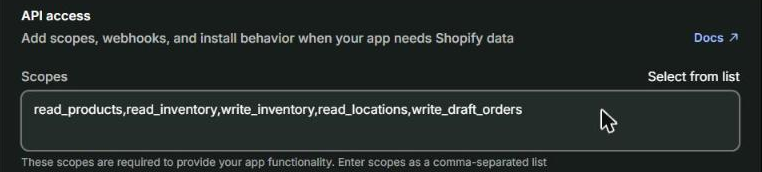
In Scopes, click at the very end of the line and type
,write_draft_orders.Scopes is the list of what the app may do. Start with the comma, and leave no spaces. Change nothing else: if your line already had more in it, keep it all. The usual line then reads:
read_products,read_inventory, write_inventory, read_locations, write_draft_orders Tap to open full size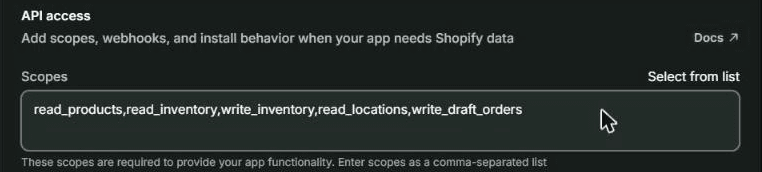
Scopes, with the permission added. Shopify’s Create version form, with ,write_draft_orders added at the end of the line. Scroll down and click Release at the bottom right.
In Release this new version?, click Release.
Releasing alone doesn’t give ScanStation the permission yet. Your store approves it next.
Approve it on your store
Shopify asks the store to approve the new permission.
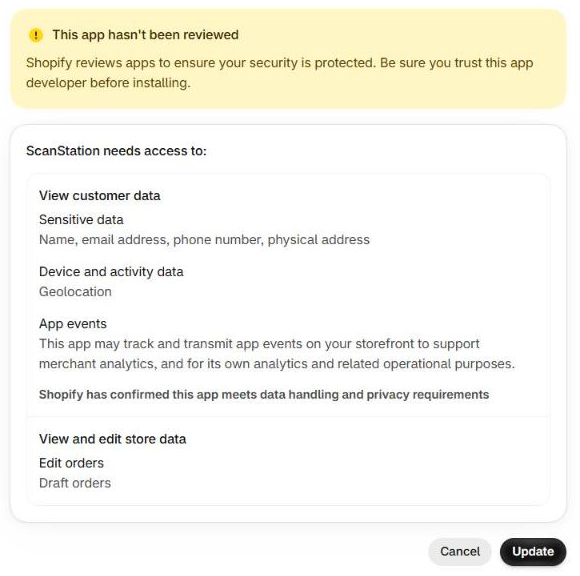
Before you approve: Shopify may show This app hasn’t been reviewed. That’s normal for an app you made yourself. Shopify also lists customer details (name, email address, phone number and physical address) because draft orders can hold them. ScanStation doesn’t read your customers’ names, emails, phone numbers or addresses from Shopify.
On dev.shopify.com, click Apps.
Click the ⋮ button (three dots) at the end of the ScanStation row, then Install app.
Choose your store.
Shopify shows Update data access, with the list of what ScanStation can access.
Click Update.
Tap to open full size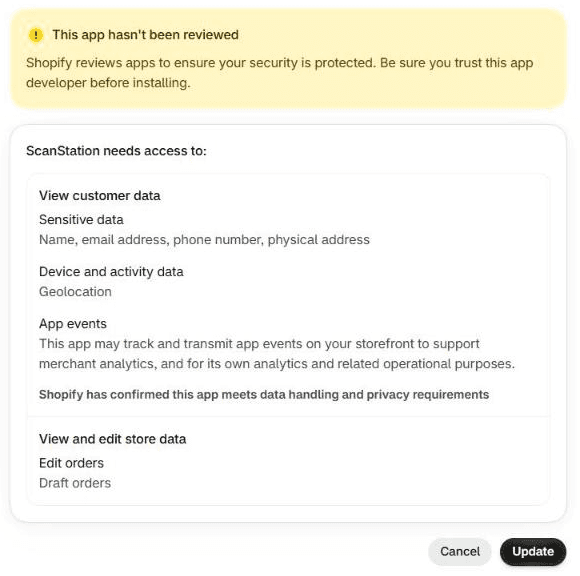
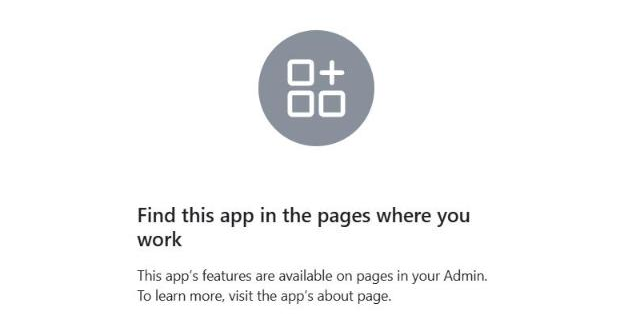
Approving on your store. Shopify’s list of what ScanStation can access. Click Update at the bottom right. Shopify then shows Find this app in the pages where you work. That’s normal.
You can close that browser tab and go back to ScanStation.
Tap to open full size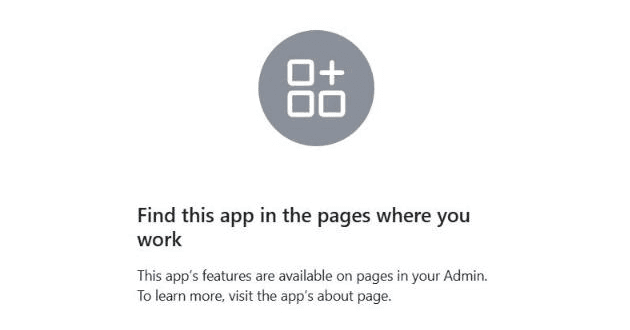
This page is normal. Shopify shows this after you approve. Nothing is wrong: go back to ScanStation.
If you open the ScanStation app from your store’s Apps list and see Authorize ScanStation, clicking Update there works too. Most ScanStation apps show it. If yours doesn’t, use the steps above.
Switch it on in ScanStation
On each station that should use it.
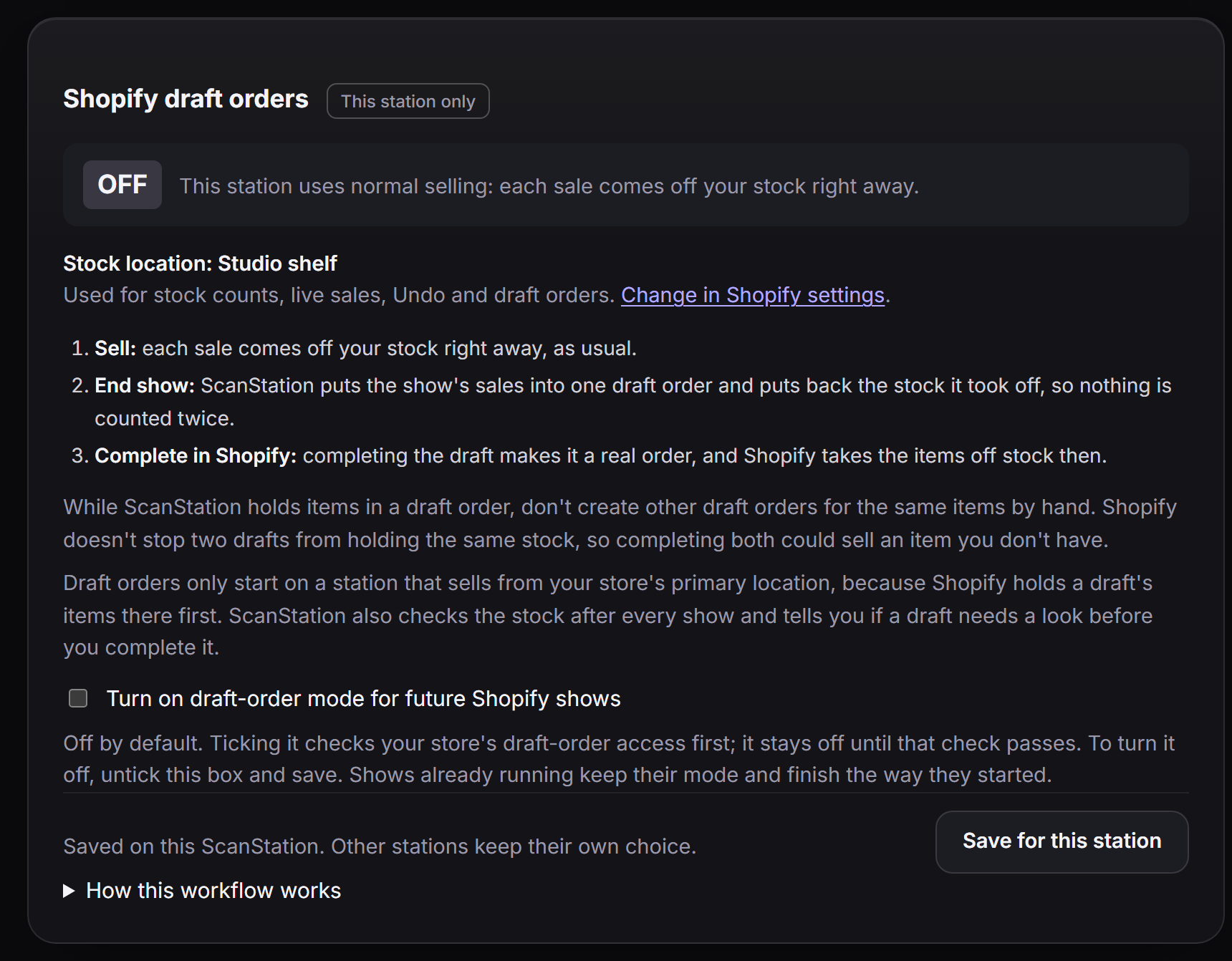
In ScanStation, open Settings, then Draft-order mode.
Tap to open full size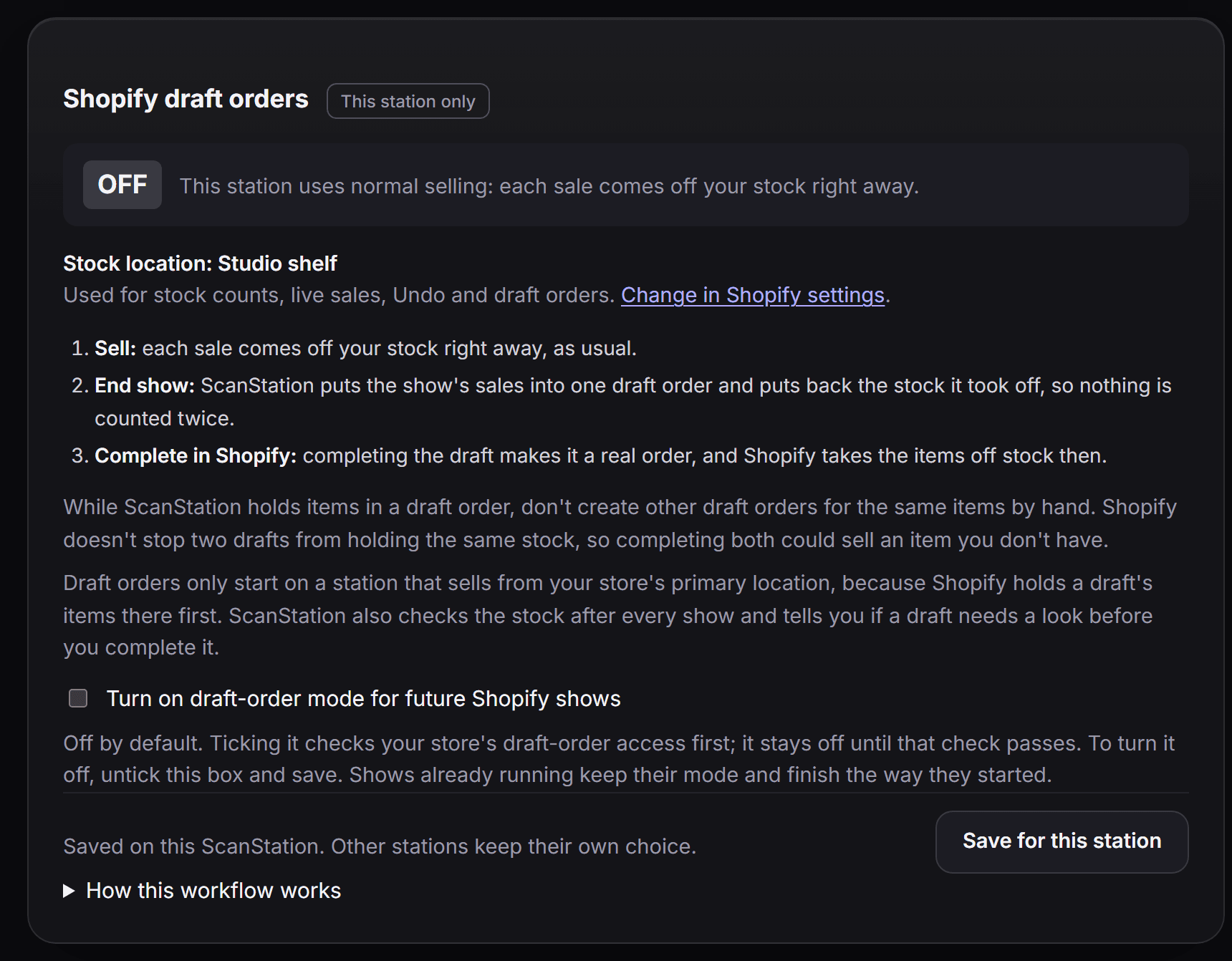
Settings → Draft-order mode. Off, as every station starts. The box to tick is near the bottom. Pretend store. Tick Turn on draft-order mode for future Shopify shows.
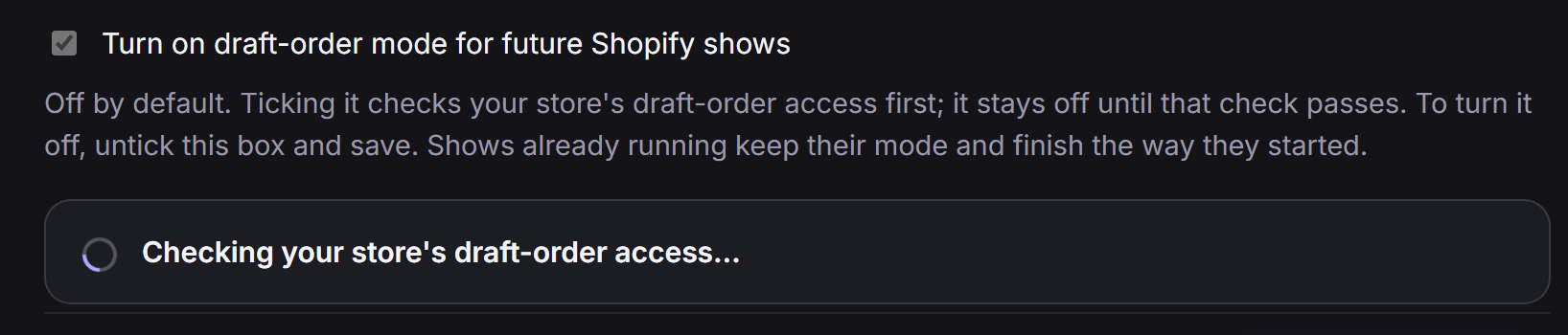
ScanStation checks your store’s draft-order access first. Draft-order mode stays off until the check passes.
Tap to open full size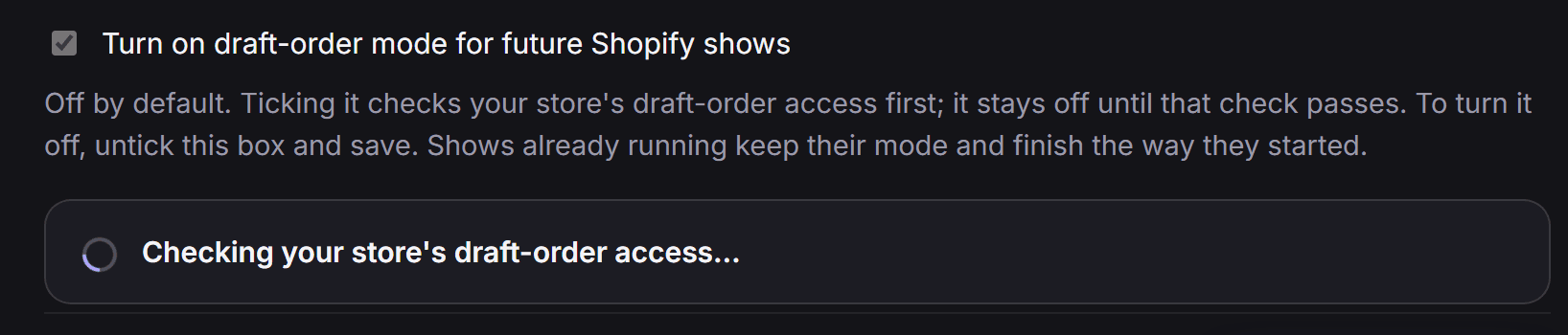
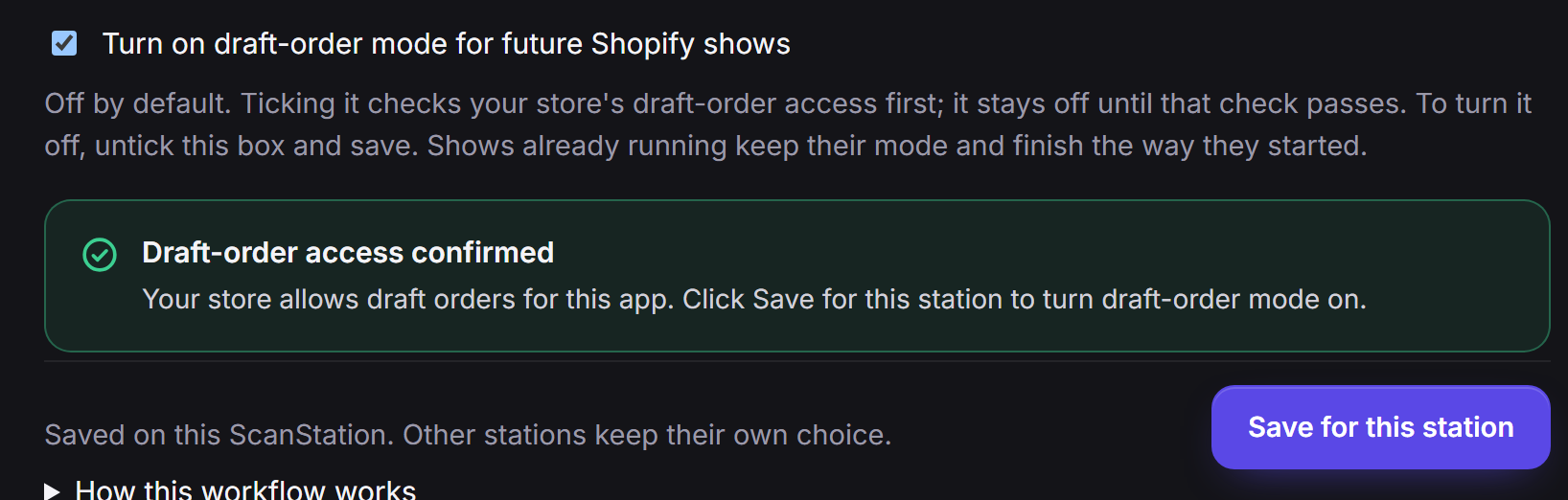
Checking access. Ticking the box checks your store first. It takes a moment. Pretend store. When it says Draft-order access confirmed, click Save for this station.
If this station doesn’t sell from your primary location, it adds: You can save draft-order mode now, but shows on this station will sell normally until it sells from your primary location. See Your primary location. Any other message? See If you see this.
Tap to open full size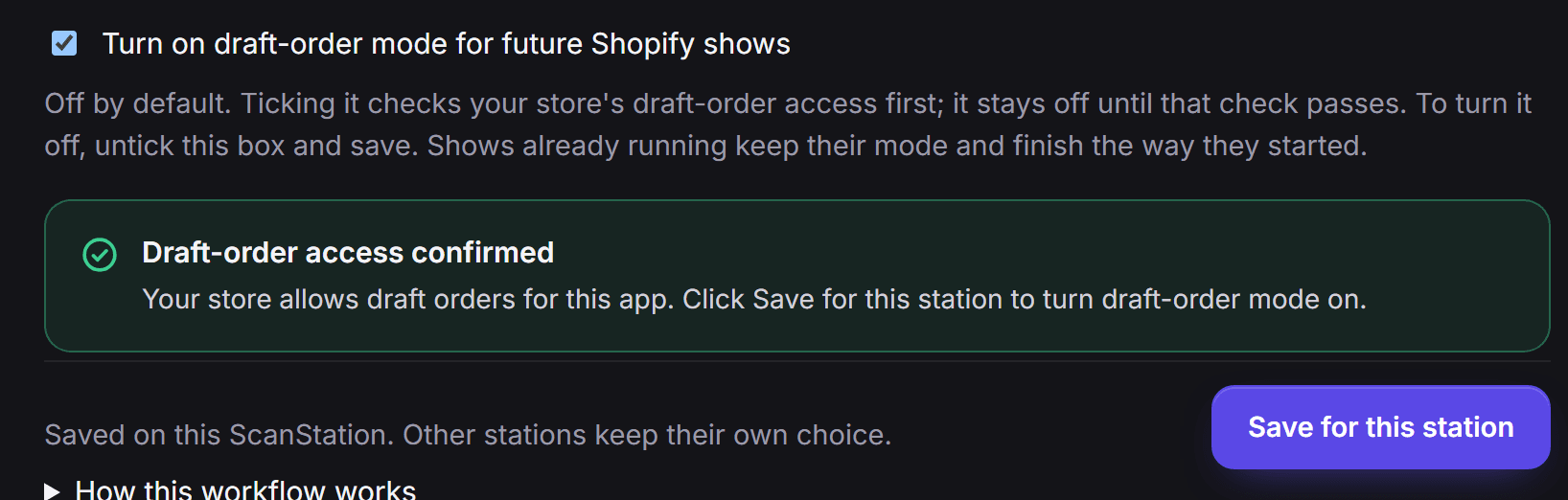
Access confirmed. The check passed. Draft-order mode turns on when you click Save for this station. Pretend store. Repeat on each station that should use draft-order mode.
Each station keeps its own choice. Saving here leaves your other stations as they are.
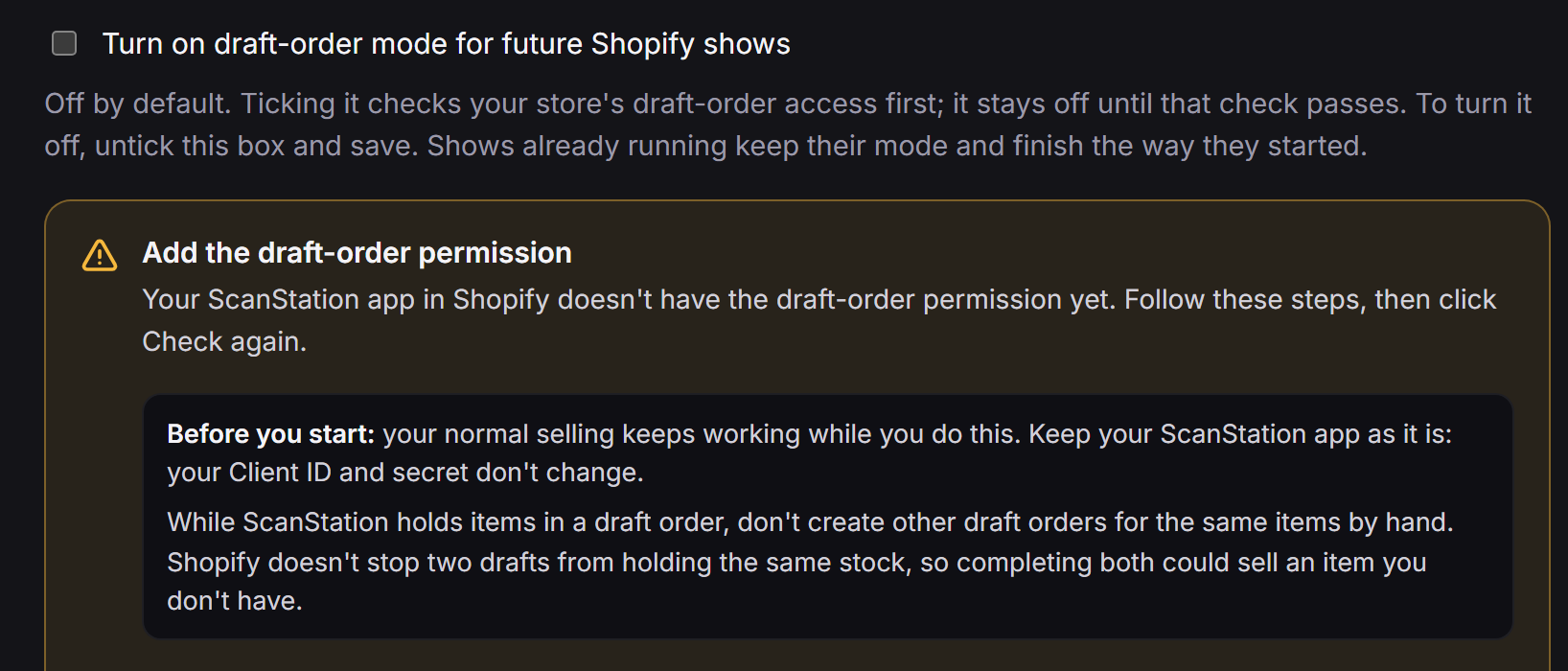
Ticked the box before you’d added the permission and approved it? ScanStation shows the same steps right there. When you’ve done them, click Check again.
Tap to open full size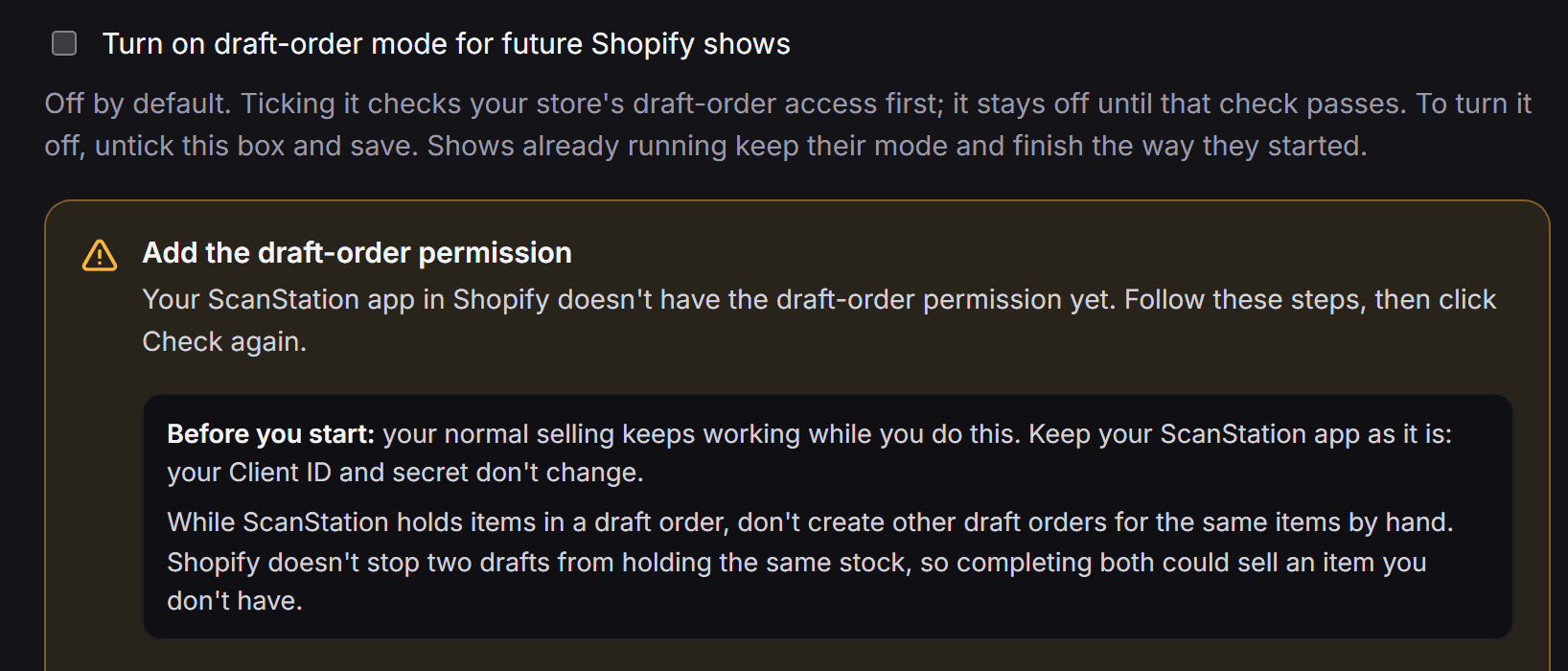
The permission is missing. ScanStation shows the same steps as this guide, right there. Pretend store.
During and after a show
Running a draft-order show
Start a new show as usual.
The Start a new show? question says Shopify draft-order mode ON. ScanStation checks your store’s access and this station’s location as the show starts.
Tick I understand, then click Yes, start a new show.
The top bar shows the amber Draft orders button and the amber line, and Draft orders: ON sits beside This show. Click Draft orders any time to read what happens at the end.
Tap to open full size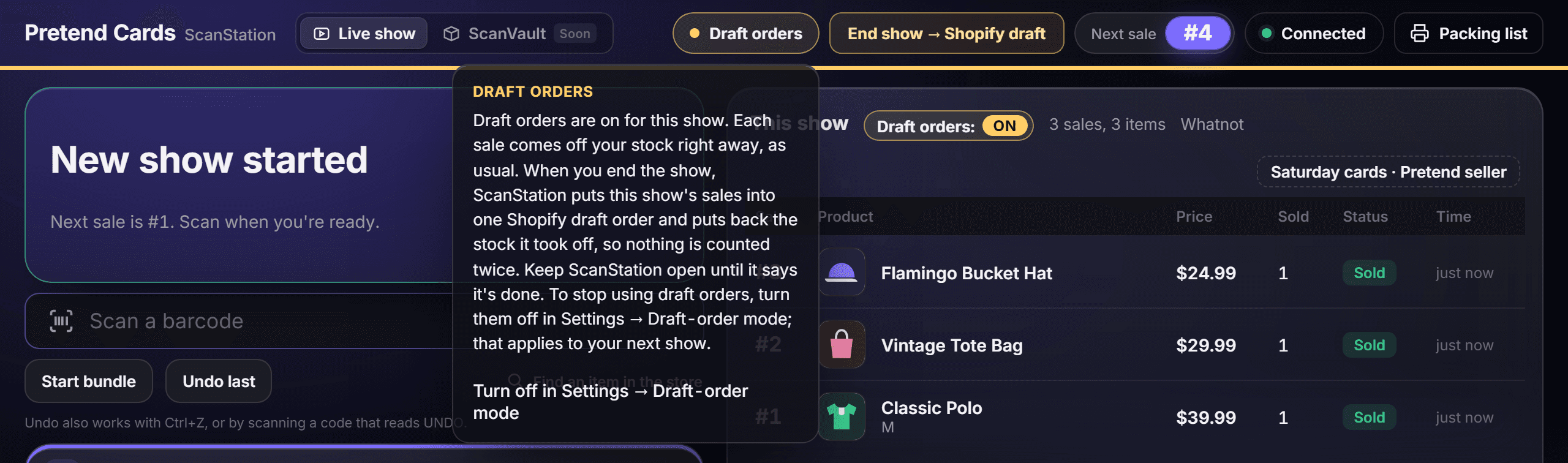
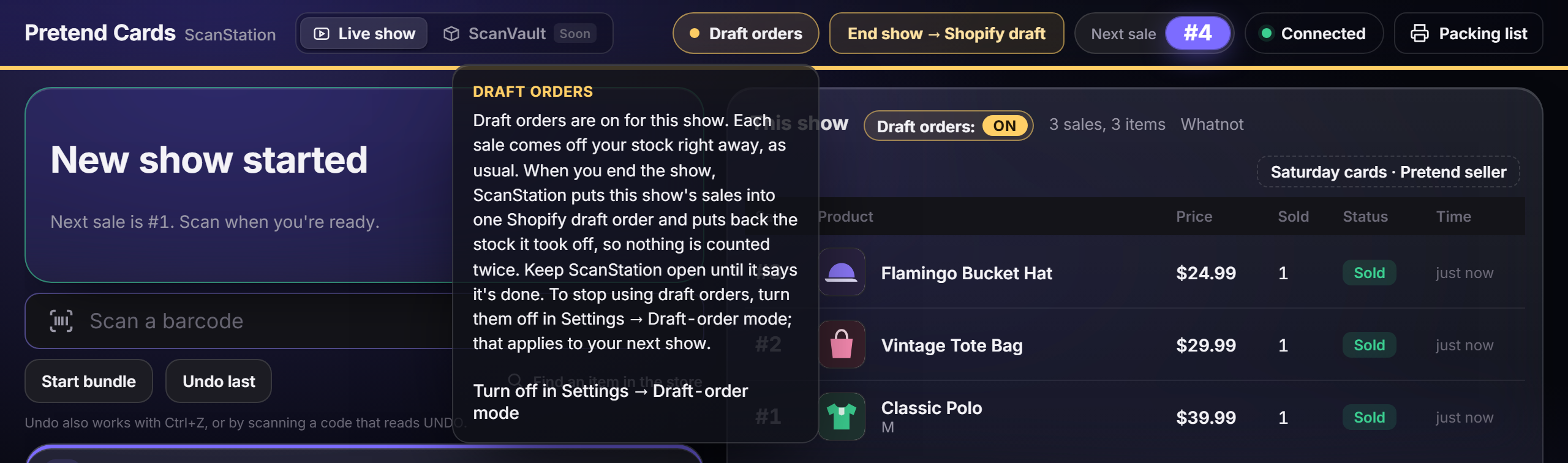
What happens at the end. Click Draft orders in the top bar to read this any time. Pretend store. Scan as usual.
Each sale comes off your available stock right away, as in normal selling. Undo last puts it back, as usual.
When the show is over, click End show → Shopify draft.
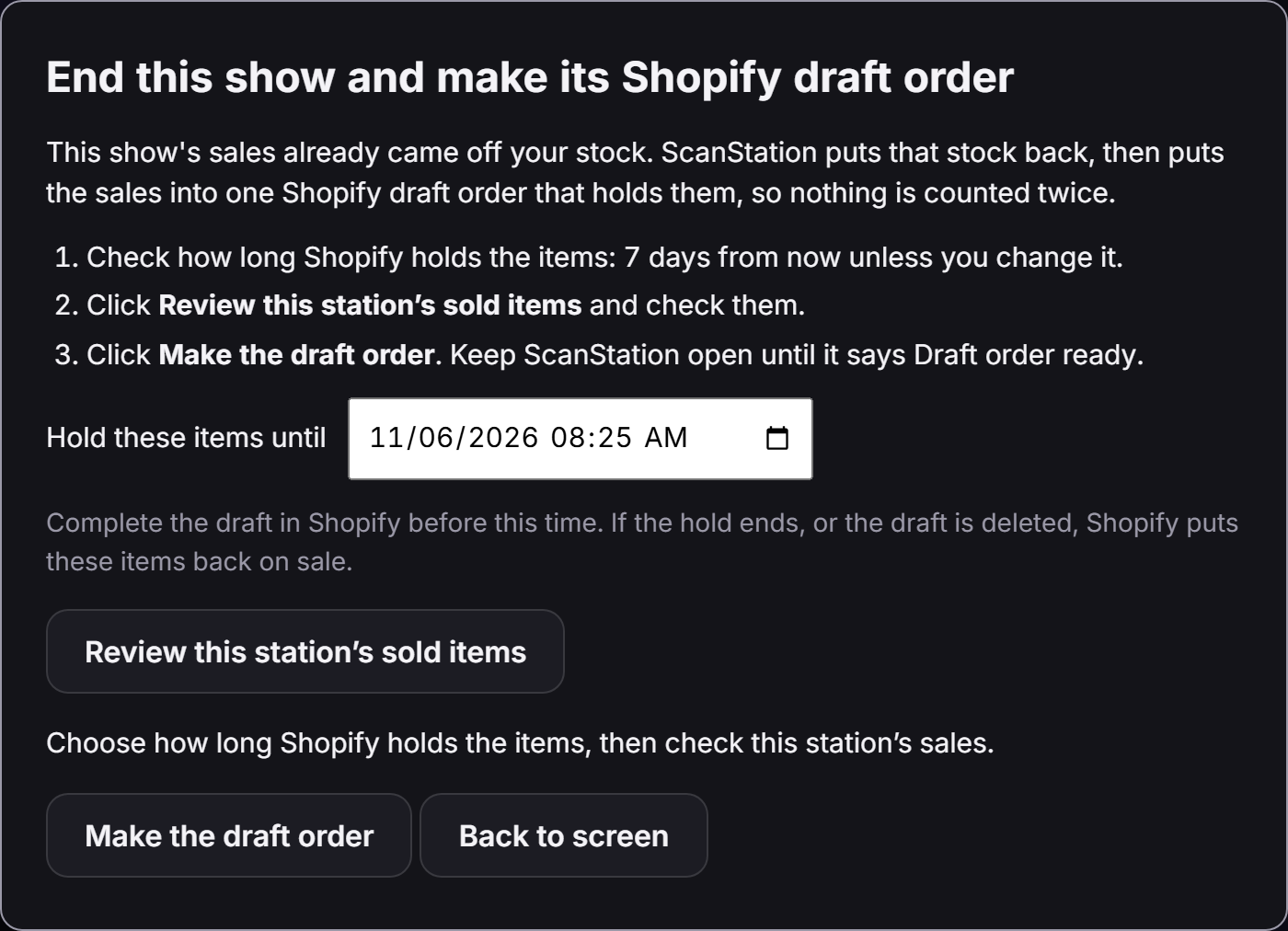
ScanStation opens End this show and make its Shopify draft order, with three steps. The station can’t start its next show until this one has ended this way.
Check how long Shopify holds the items.
Hold these items until starts at 7 days from now. Change it if you need more or less time; it must be at least 5 minutes away. As the window says: Complete the draft in Shopify before this time. If the hold ends, or the draft is deleted, Shopify puts these items back on sale.
Tap to open full size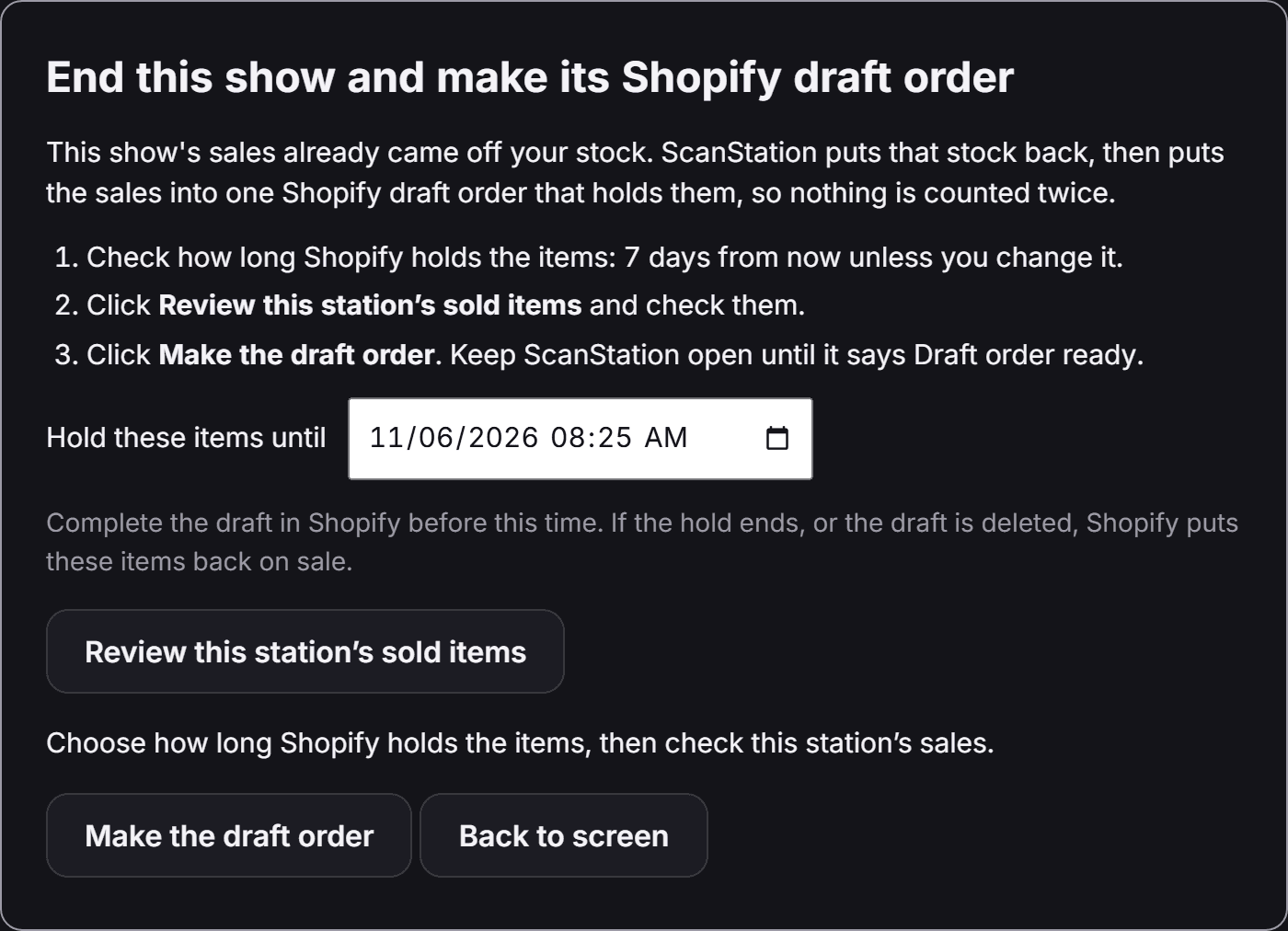
Ending the show. The hold starts 7 days ahead; change it if you need to. Pretend store. Click Review this station’s sold items and check them.
Each sale shows its price from your platform’s sales report if you’ve imported it, or else Shopify’s catalog price. If ScanStation asks, tick I reviewed the items without imported prices; use Shopify catalog prices for them.
Click Make the draft order, and keep ScanStation open until it says Draft order ready.
ScanStation puts this show’s stock back, then makes one Shopify draft order that holds the same items, so nothing is counted twice. Sales pause for that moment. If ScanStation closes first, open it again and click Check the draft order to finish.
In Shopify, complete the draft.
The ready message says how: Open Shopify → Orders → Drafts → the draft’s name, check the items, then, if your buyer already paid on Whatnot, TikTok or eBay, click Collect payment → Mark as paid. Completing makes it a real order, and Shopify doesn’t take the items off stock a second time.
Tap to open full size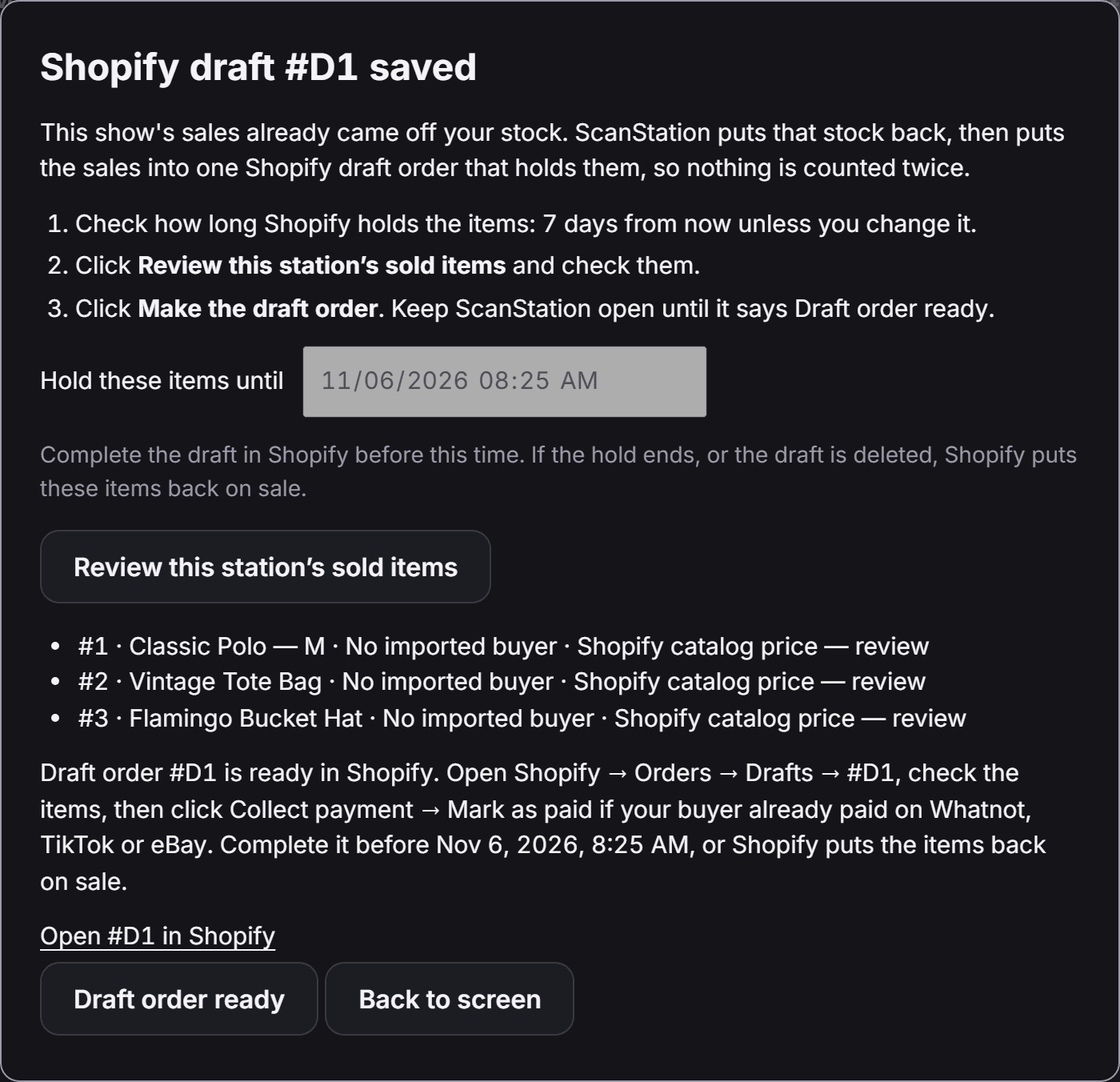
Draft order ready. ScanStation says how to finish the draft in Shopify. Pretend store and draft.
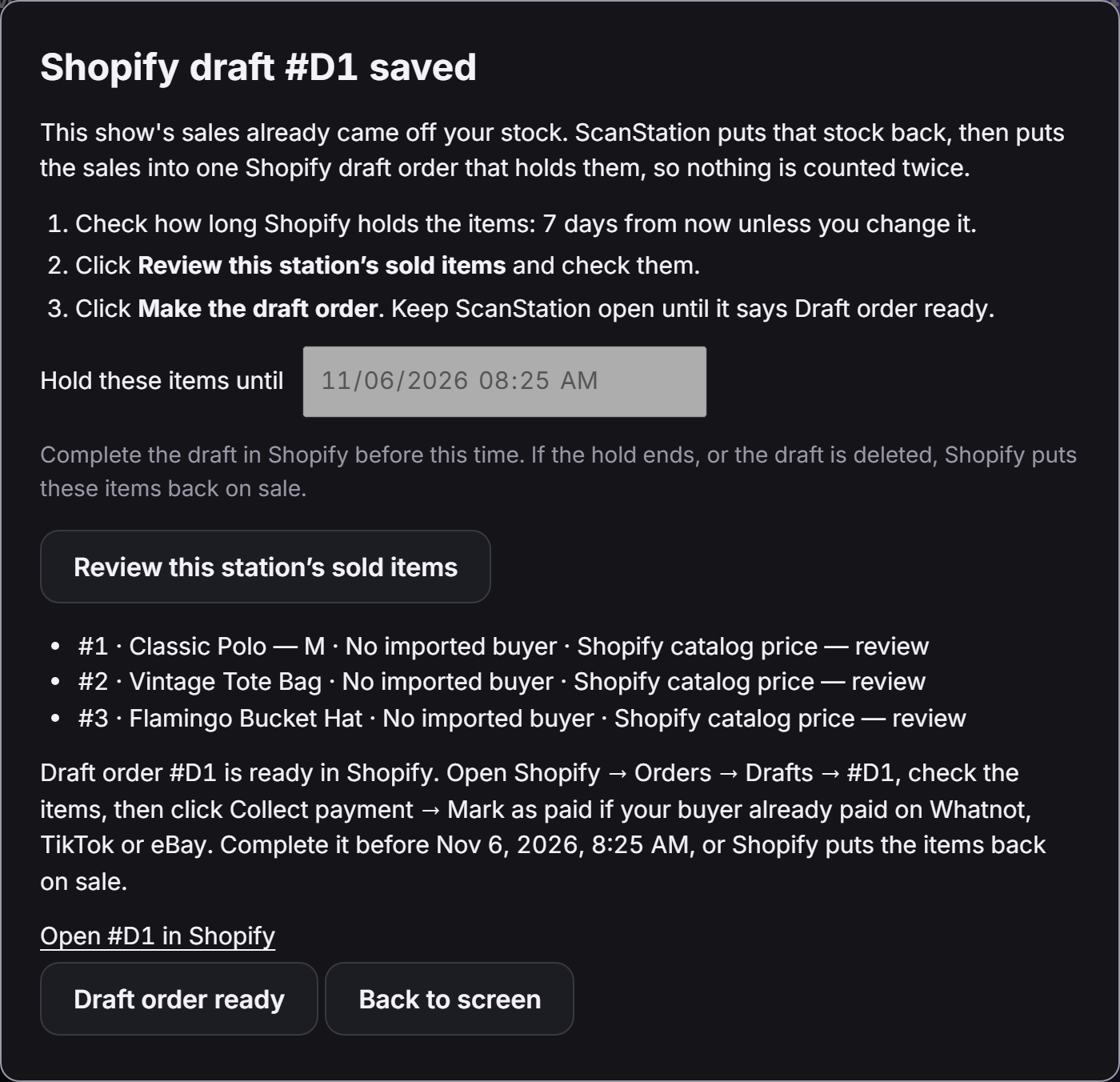
Complete the draft before its hold ends, and don’t delete it. If the hold ends, or the draft is deleted or changed, Shopify puts those items back on sale, even though you sold them on your show. Don’t create other draft orders for the same items by hand either: Shopify doesn’t stop two drafts from holding the same stock, so completing both could sell an item you don’t have.
Your online store. While ScanStation’s draft order holds an item, Shopify doesn’t count it as available. If the draft holds your last one, your online store shows it as Sold out, on its product page and in your catalog. When the hold ends, or if the draft is deleted or changed, the item can sell online again.
If a show can’t start with draft orders
That show sells normally, and the top of the scan screen says Draft orders couldn’t start for this show; selling normally., followed by why, so you’re never unsure. Stock comes off right away and no draft is made. Your next show checks again. The reasons, as ScanStation words them:
- Draft orders only work when this station sells from your store’s primary location. ScanStation names both locations and the two fixes: see Your primary location.
- Your ScanStation app in Shopify doesn’t have the draft-order permission; Settings → Draft-order mode shows how to add it.
- Shopify hasn’t allowed this app to read draft orders yet.
- This station’s older Shopify connection can’t use draft orders; Settings → Draft-order mode explains.
- ScanStation couldn’t reach Shopify in time to check draft-order access.
- ScanStation couldn’t confirm your store’s primary location, and draft orders only work from it.
- Shopify couldn’t confirm this station’s stock location for draft orders.
- Shopify couldn’t confirm draft-order access.

At the end of a show, if Shopify refuses the draft order, ScanStation takes the show’s sales off your stock again and says The show ended as normal selling. No Shopify draft order was made. Your stock then shows what sold, as after any normal-selling show.
Primary location only
Your primary location
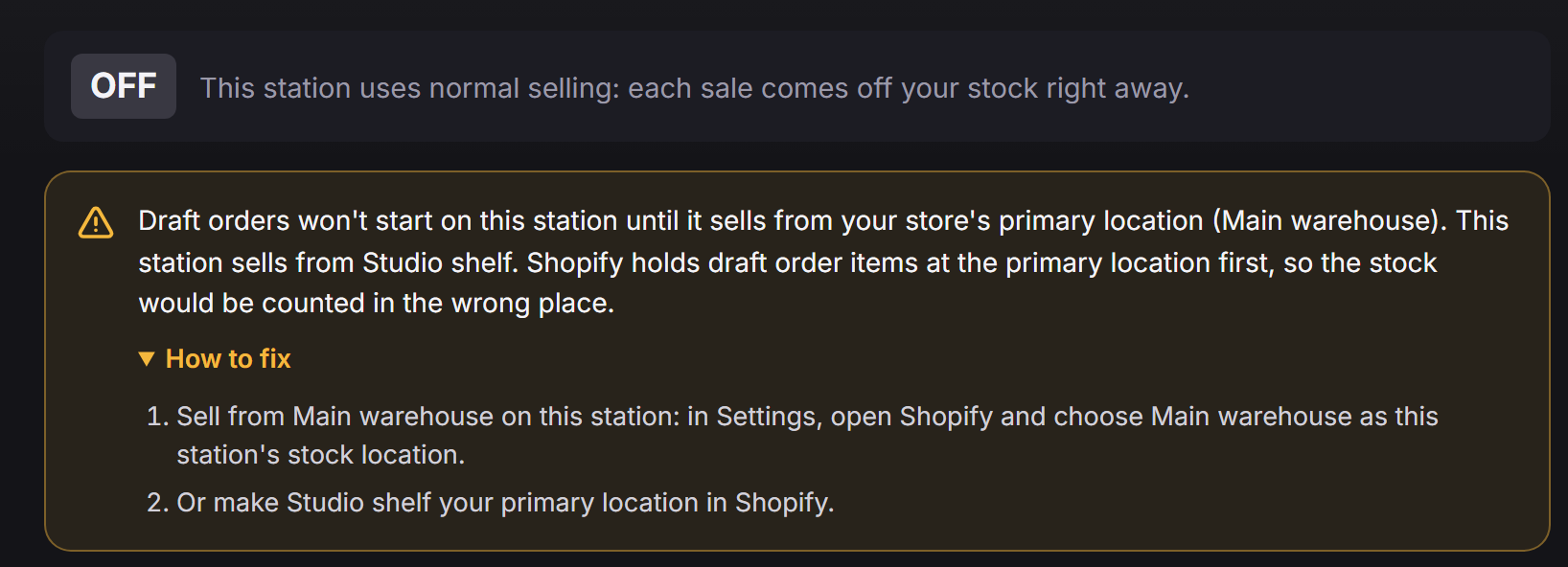
Draft orders only start on a station that sells from your store’s primary location. That’s because at the end of a show, ScanStation puts the stock back at this station’s location, and Shopify then holds the draft’s items at your primary location first. From any other location, the stock would be counted in the wrong place, and items could be sold twice.
Sell from your primary location on every station that uses draft orders.
If a station sells from another location, Settings → Draft-order mode says Draft orders won’t start on this station until it sells from your store’s primary location, naming both locations, and each show on that station sells normally and says why. Open How to fix for two ways to fix it:
- Sell from your primary location on this station: in Settings, open Shopify and choose it as this station’s stock location.
- Or make this station’s location your primary location in Shopify. In Shopify, open Settings → Locations, click Change default location, choose the location, and save. Changing it can also change how Shopify works out your shipping rates, so read Shopify’s help first.
Until then, that station sells normally, exactly as it always has.
Needs review
If a draft needs review
After every show, ScanStation checks the draft order it made. If it can’t confirm it, the end-of-show window says Needs review — don’t complete this draft yet, and ScanStation says: Don’t complete draft (its name) until you’ve checked it in Shopify: its stock may not match. You can keep selling.
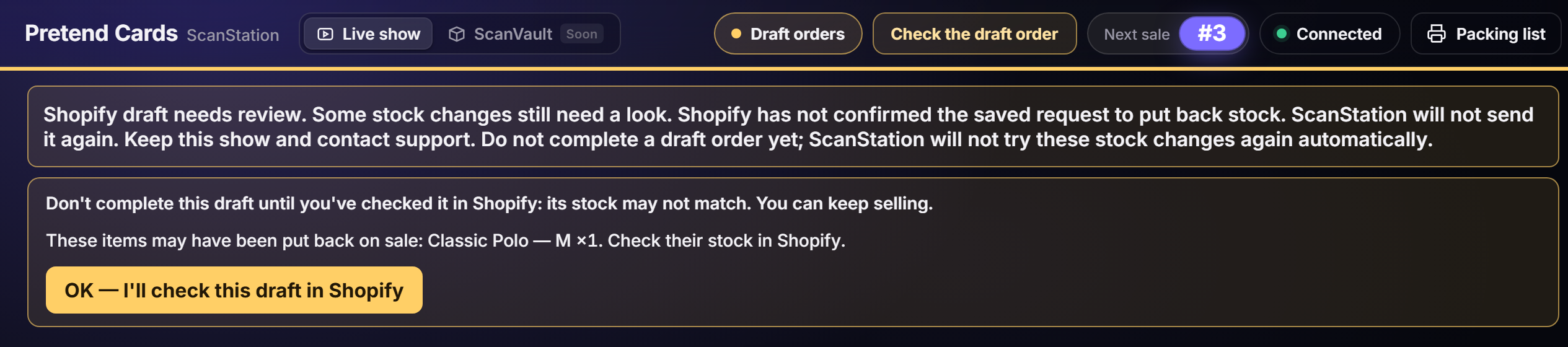
Click OK — I’ll check this draft in Shopify, then keep selling as usual.
ScanStation notes it and offers Start a new show. If it says This show’s draft order isn’t finished. Click Check the draft order to finish it first., click Check the draft order instead.
Don’t complete that draft until you’ve checked it.
In Shopify, open it under Orders → Drafts. Compare the draft’s items, and each item’s stock, with this show’s sales.
If they don’t match, contact support.
In ScanStation, open the status menu at the top and choose Need help?, then Email support: it copies a diagnostic report for you to paste in. Add the message ScanStation showed, word for word.
If ScanStation also says These items were put back on sale but no draft holds them or These items may have been put back on sale, followed by the items, check those items’ stock in Shopify too: they may be for sale again although they sold on your show. If it says ScanStation couldn’t read this show’s record., check every item from that show in Shopify and email support; Start a new show anyway; I’ll email support about this show lets you keep selling.
While a draft needs review, ScanStation doesn’t change it or your stock on its own.
Troubleshooting
If you see this
Every message in Settings → Draft-order mode after you tick the box or click Check again, in the app’s own words, and what to do.
- Checking your store’s draft-order access…
- Wait a moment.
- Draft-order access confirmed
- Click Save for this station. That turns draft-order mode on for this station’s next shows. If this station doesn’t sell from your primary location, its shows sell normally until you fix that.
- Add the draft-order permission
- Your ScanStation app doesn’t have the permission yet, or your store hasn’t approved it. Releasing a version isn’t enough on its own. Add the permission and approve it, then click Check again.
- Waiting for Shopify
- You’ve added and approved the permission, but Shopify isn’t letting the app read draft orders yet. Click Check again in a few minutes. If it still says this, contact support.
- Couldn’t reach Shopify
- Check this computer’s internet connection, then click Check again.
- Couldn’t confirm draft-order access
- Nothing was changed. Click Check again. If it still says this, contact support.
- This station uses an older Shopify connection
- It connects with an older kind of key, which can’t take the new permission. Click Open the app steps, create a new ScanStation app in Shopify, then come back and click Check again.
Turn it off
Turn it off
Any time, for one station at a time.
In ScanStation, open Settings, then Draft-order mode.
Untick Turn on draft-order mode for future Shopify shows.
Click Save for this station.
Your next show uses normal selling. A show that’s already running keeps its mode and finishes the way it started.
Questions
Common questions
Will draft-order mode change normal selling?
No. It’s off by default, and a station with it off sells exactly as before. You’ll see Draft-order mode in Settings, marked OFF: you don’t need to do anything. Turning it on for one station doesn’t change your others.
Do I need a Shopify Partner account?
No. You add one permission to the ScanStation app you already have, in the Dev Dashboard, and approve it on your store. There’s no new app, and your connection keeps working as it is.
Does selling stop while I add the permission?
No. Your current shows keep selling normally the whole time.
Why does Shopify list my customers’ details?
Because draft orders can hold them, Shopify lists them for any app that can make draft orders. ScanStation doesn’t read your customers’ names, emails, phone numbers or addresses from Shopify.
What if I miss the hold time?
Shopify puts the items back on sale, even though they sold on your show. Complete the draft as soon as you can, or extend its hold in Shopify before it ends. See Running a draft-order show.
Can my online store sell the items while the draft order is being made?
For a few seconds, it can. While ScanStation makes the draft order, it has already put the stock back and Shopify isn’t holding the items yet, so they can briefly show as available online. Once the draft order holds them, Shopify doesn’t count them as available.
Why only my primary location?
Shopify holds a draft’s items at your primary location first. From any other location, the stock would be counted in the wrong place. See Your primary location.
What if Check again doesn’t pass?
Each message tells you what to do. See If you see this for every one.
How do I turn it off?
In Settings → Draft-order mode, untick the box and click Save for this station. See Turn it off.
Updated · All guides